01
Printer Offline
The printer appears in the device list, but its status says Offline. The saved printer record may exist even when the current communication path is unavailable.
• Printer visible• Offline status• Connection path

Independent printer education & practical how-to guides
Browse the full educational library
View all guidesA practical educational guide to USB, Wi-Fi, driver software, print queues and the messages your printer displays.
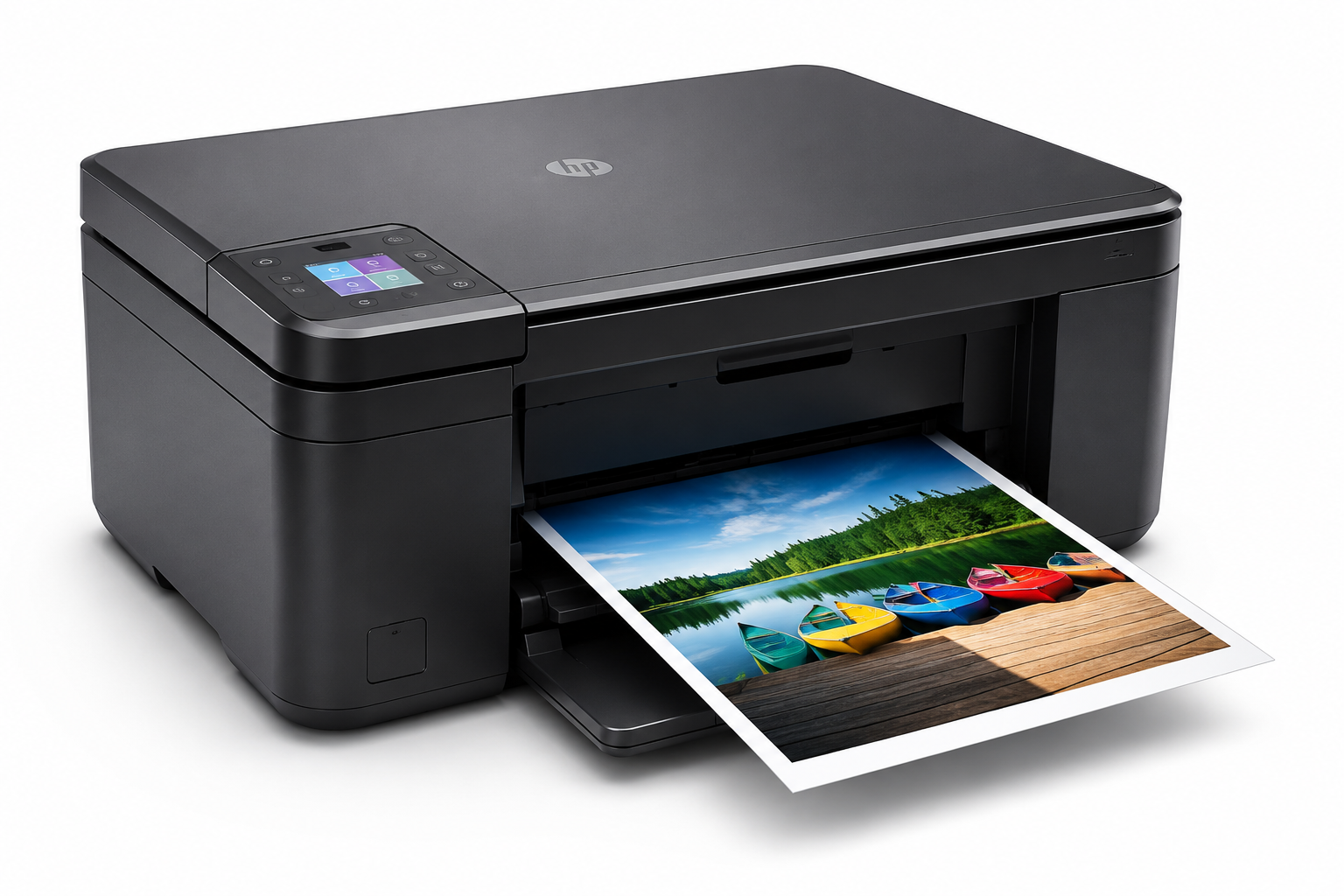
Understand common device warnings without assuming they mean the hardware is broken.
The printer appears in the device list, but its status says Offline. The saved printer record may exist even when the current communication path is unavailable.
“Driver unavailable,” an unknown device, or a warning icon may indicate that compatible printer software is missing or cannot load correctly.
A connected USB printer may not be detected because of cable problems, the port, a hub, or operating-system device recognition.
Pending or paused documents may prevent later jobs from printing. The queue shows print requests as they wait or are processed.
A powered-on wireless printer may not appear during discovery because of network visibility, network separation, or discovery configuration.
A printer may not appear immediately during device search. The operating system checks available USB, network, and wireless discovery paths.
Operating systems provide separate views for devices, printing jobs and driver recognition. These descriptions are educational; they do not inspect your device.
Displays installed printers and general device status. Useful for checking whether the system has a printer profile.
Shows pending, paused, failed and active print jobs, giving a clearer view of what is waiting to print.
Displays hardware recognition and driver-related warnings, including unknown devices and port information.
A simplified path from a digital document to printer output.
A USB, Ethernet or Wi-Fi connection makes printer communication possible.
Driver software helps the operating system prepare printer-compatible instructions.
Documents enter a queue before the system sends them onward to the printer.
The same device can show different messages depending on the stage affected.
The printer is listed but shows offline or unavailable.
The system reports a driver problem or unknown device.
Print jobs remain pending and new requests wait.
The wireless printer does not appear during discovery.
Three educational guides on setup, offline statuses and drivers.
Six visual steps introducing new-printer preparation, unpacking, connections and first-use concepts.
Explore GuideNine illustrated learning points about offline messages and printer communication.
Explore GuideTwelve visual learning steps describing printer software and Windows driver configuration.
Explore GuideA driver helps an operating system prepare document instructions for compatible printer hardware. Queues and communication services also play a role.
A driver helps the operating system exchange printing instructions with the hardware.
Print requests are generally organized in a queue before reaching the device.
Depending on the device, the connection may be USB, Ethernet or Wi-Fi.
These prompts introduce connection concepts. They do not replace manufacturer instructions or provide a device diagnosis.
Consider the power light, display and ready state.
Check whether the USB or network connection is available.
Look for the printer in operating-system settings.
Driver availability affects recognition and communication.
Old pending jobs may hold up later requests.
A successful test can help confirm a basic printing path.
Similar-looking messages may describe different conditions.
The computer cannot currently confirm communication with the printer over the configured path.
The operating system is not forwarding print jobs even though the printer can still be listed.
A required driver may be missing, incompatible, or not functioning as expected.
The printer may not be discoverable by the present USB, Ethernet or wireless search method.
A computer and printer communicate through several linked systems. The computer prepares a document, printer software processes its instructions, the print queue organizes the job, and the configured connection carries data toward the printer.
Offline status usually indicates that the computer cannot confirm the printer’s availability through its saved connection. A printer may still be powered on while its network or USB path is not responding.
A driver-related message is different. It can indicate that a necessary software component is missing, incompatible or not loaded correctly, affecting printing options and communication.
Print queues matter because jobs can wait behind an older paused or stalled request. A pending document does not by itself prove that printer hardware is damaged.
Wireless discovery involves network configuration. Devices on separate networks, isolated guest Wi-Fi, or with discovery blocked may not see one another even when both have a wireless connection.
Quick learning references for status, connectivity, drivers and printing software.
The operating system cannot currently confirm an active communication path to the configured printer. Power, cabling, network or printer settings can be involved.
Not necessarily. The device may work normally while the connection or status-reporting path is unavailable.
A printer driver is software that helps an operating system translate and prepare print requests for compatible printer hardware.
It suggests that required driver software is missing, incompatible or not working properly. It does not always mean the printer is physically disconnected.
The queue organizes print requests. Paused or stalled jobs can prevent subsequent documents from being processed.
Yes. Separate networks, guest-network isolation, wireless settings and local discovery behavior can prevent printers from appearing. Different Wi-Fi frequency bands alone do not necessarily prevent discovery.
Potential causes include a loose or defective cable, a USB port or hub issue, a missing driver, or device-recognition settings.
No. This is general educational reference content. We do not offer live repair, remote access, telephone support or paid troubleshooting.
Clarity Field offers general educational information. We do not provide paid support, device repair, software downloads, phone assistance or remote access. For model-specific procedures, consult official manufacturer documentation.