Clear Explanations
Understand offline notifications, printer status messages, print queues and commonly used printing terms.

Independent printer education & practical how-to guides
Browse the full educational library
View all guidesLearn the basics, one topic at a time.
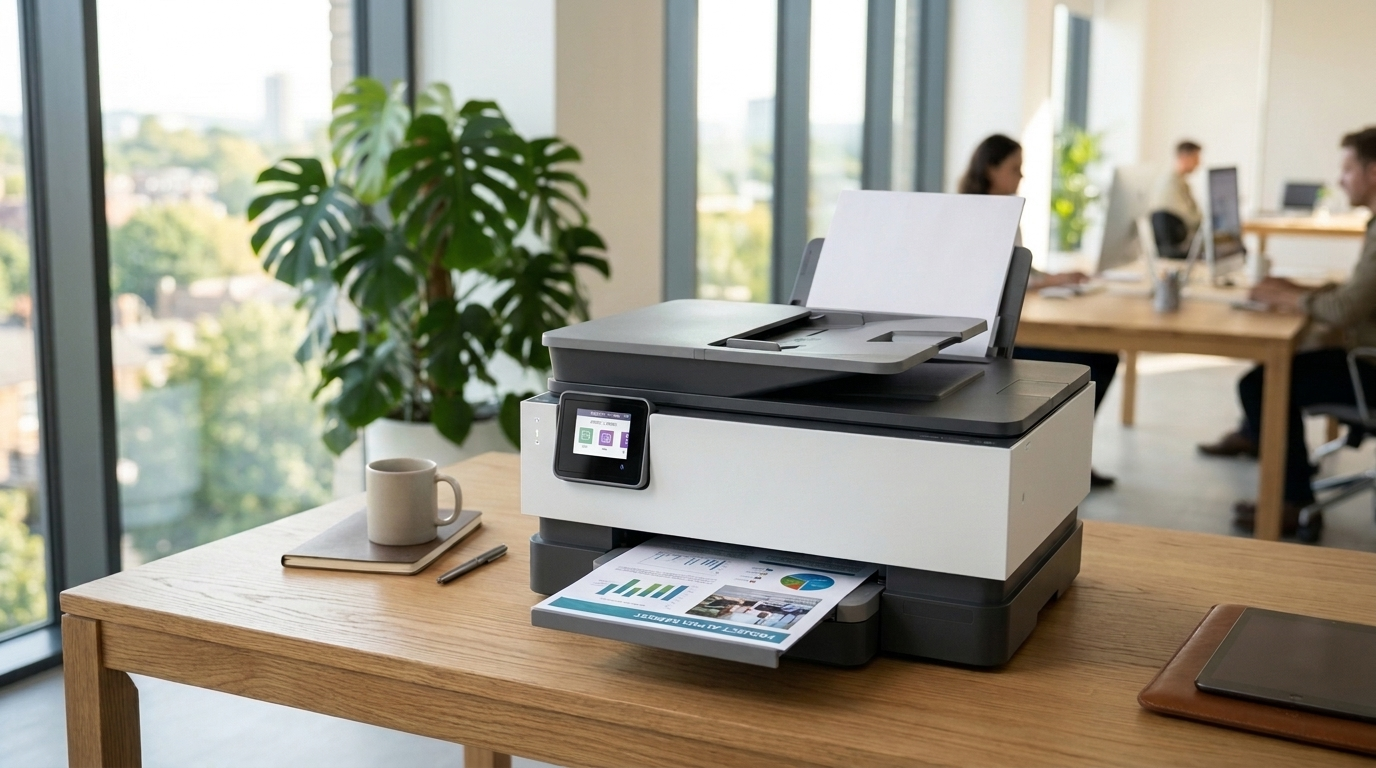
Everyday printer topics, explained with clarity.
Explore practical guides covering first-time setup, Wi-Fi connections, driver basics and routine printer care. Straightforward explanations to help you understand the essentials.
Find clear explanations for everyday printer questions.
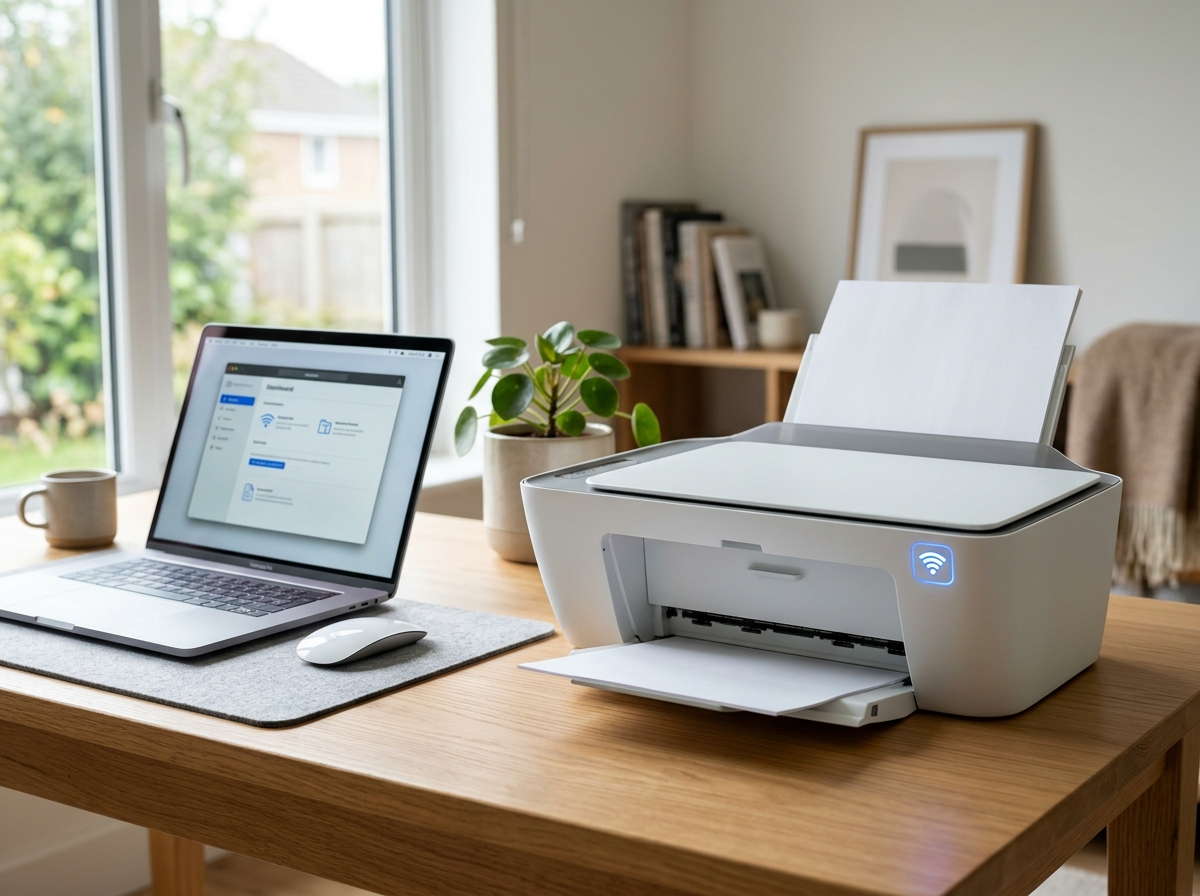
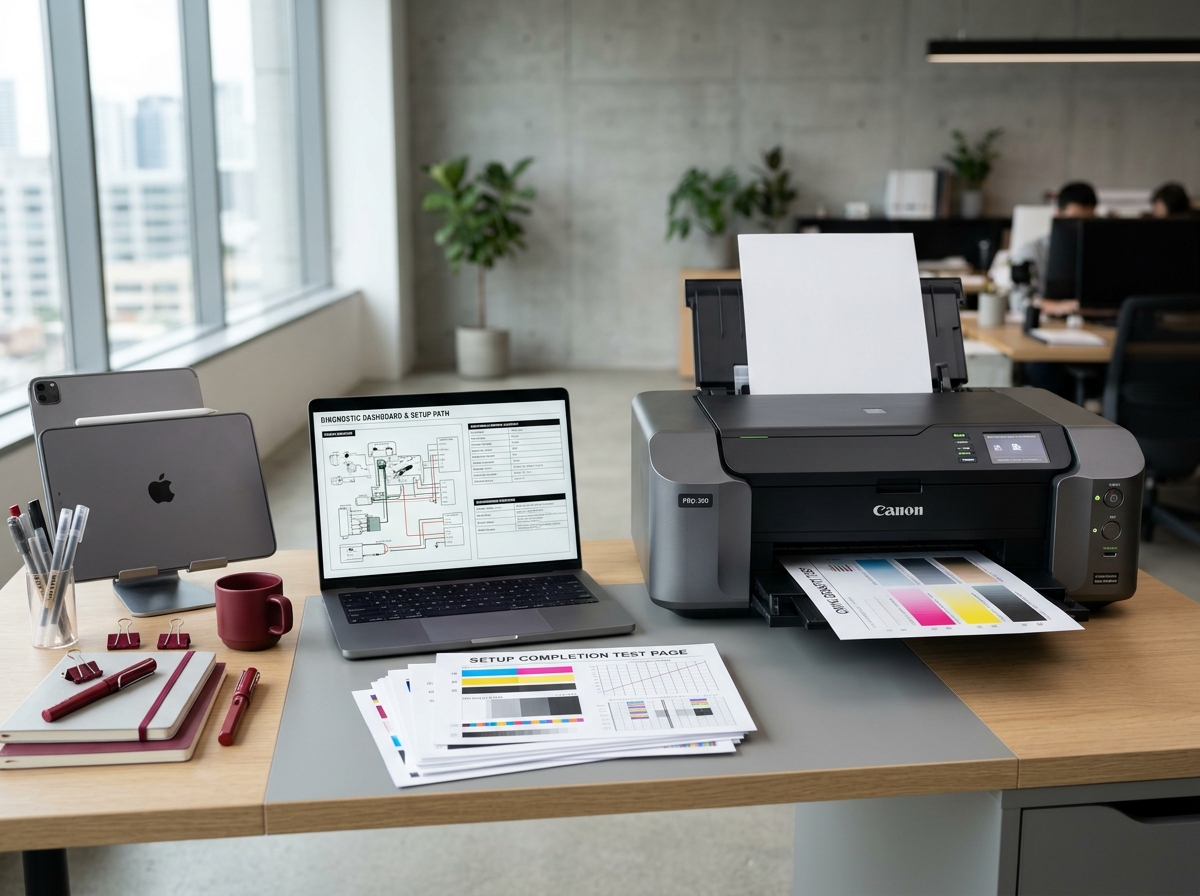
Printing, made simpler to understand.
Everyday printing comes with questions. Clarity Field brings together practical, easy-to-follow articles covering printer setup, wireless connections, driver basics and common printing issues.
Explore independent educational information that makes unfamiliar printer terms and technical concepts easier to understand.
Informational articles only. No paid repairs, phone support, software downloads or remote access.
Find clear background information about the essentials of printer use, from setup to regular maintenance.
Understand offline notifications, printer status messages, print queues and commonly used printing terms.
Explore first-time setup, wireless printing, device pairing and network settings in everyday language.
Get familiar with printer drivers, operating system compatibility, spooler services and print preferences.
Learn about paper handling, ink and toner, printer cleaning considerations and jam prevention.
Our focus is on educational articles that help readers get familiar with printing technology, terminology and common situations.
Our guides are written as learning material and general reference information.
We do not distribute printer drivers, remote-access software or repair tools.
No manufacturer affiliation, commercial technical support or device repair services.
Clarity Field is an independent educational blog. All content is provided for general information and learning purposes only. We are not affiliated with, endorsed by, or acting on behalf of any printer manufacturer or official technical support provider. We do not offer direct repair, telephone support, remote assistance or software downloads.
Browse straightforward learning material on printer software, network connections, print queues, consumables and device care.
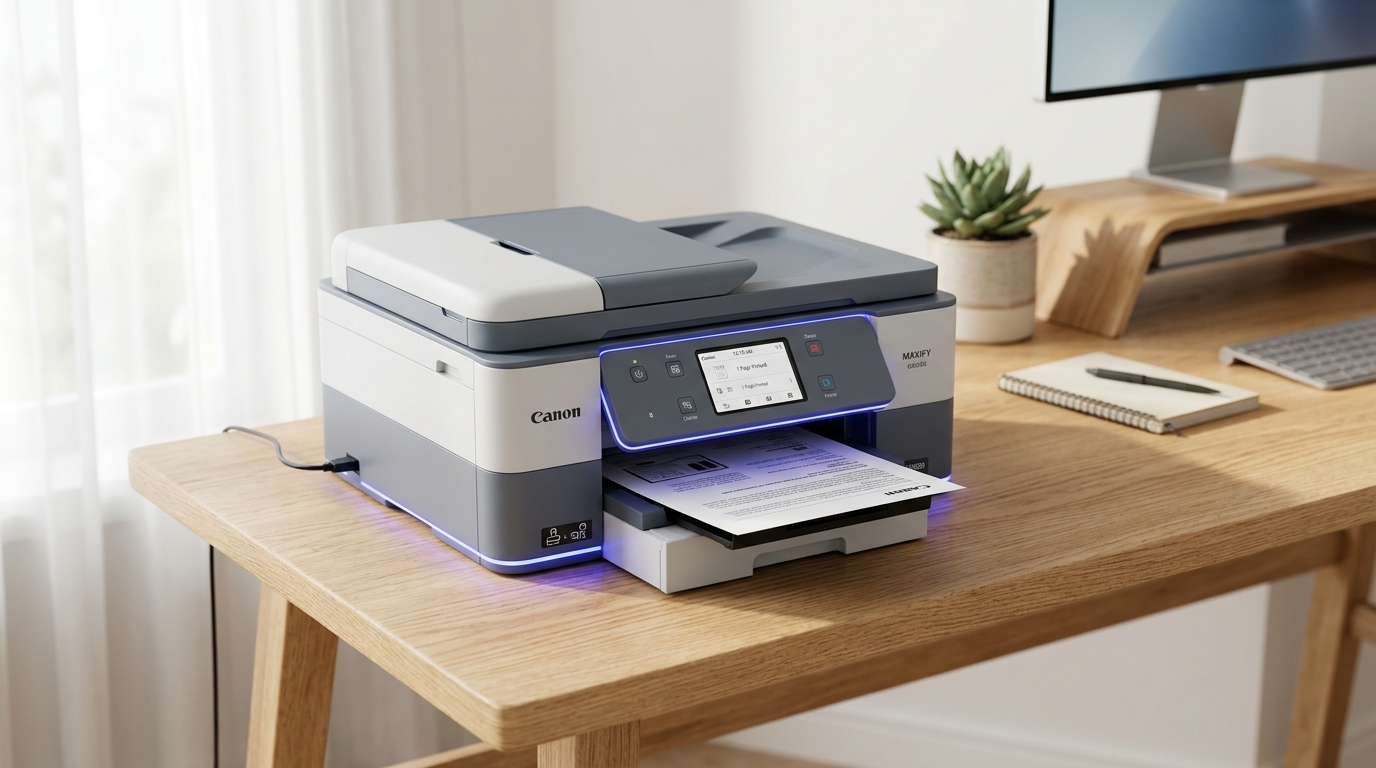
Understand Windows and macOS printer drivers, installation concepts, USB and TCP/IP ports, and basic printer communication settings.
Four more practical areas to explore at your own pace.
Explore wireless printer connections, WPS pairing, network addresses, AirPrint and mobile printing fundamentals.
03Learn what offline messages, frozen print queues, spooler services and printer communication errors can mean.
04Read about print quality, streaks, cartridge alignment, nozzle checks and routine printer maintenance.
05Understand paper feed mechanisms, tray alignment, common jam causes and safe paper handling practices.
An accessible look at how printers connect to devices, interpret documents, and turn digital information into a physical page.
 Technology explained
From screen to paper
Every print begins with information.
A print job moves through software, connection methods and printer components. Follow the simple flow below.
Learn how USB, Ethernet, and Wi-Fi connections allow computers, smartphones, and printers to communicate. Explore IP addresses, router signals, and WPS pairing.
Understand how printer drivers interpret documents, how printing languages work, and how operating systems organize print queues and communicate with devices.
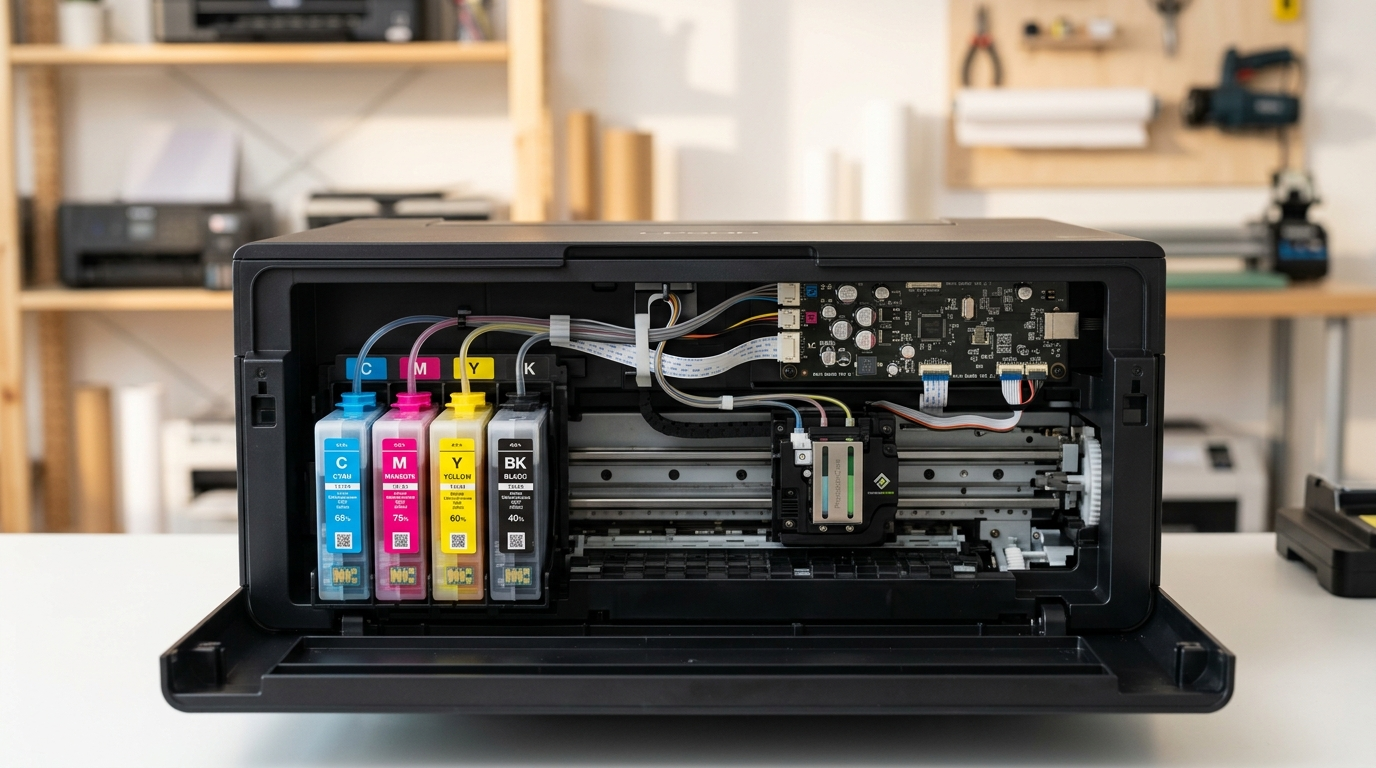
Discover how inkjet printheads apply tiny ink droplets and how laser printers use toner, imaging drums, and heated fusers to create printed documents.
Explore what printer indicator lights, paper sensors, carriage notifications, offline messages, and common error codes can mean.
The concepts above are intended for learning only. Features, error messages and maintenance procedures may differ by printer model. Refer to the manufacturer's official documentation for device-specific information.
Understand what printer messages and unexpected behavior may mean, from wireless connections and print queues to paper handling and driver compatibility.
Explore Printer GuidesLearn what an offline printer status means and explore common causes involving network connections, printer settings, USB communication and print services.
Understand why print jobs can become stalled, how documents are processed in a queue and what role the Windows Print Spooler plays.
Explore common print quality concerns involving low ink, clogged printhead nozzles, cartridge alignment and uneven toner distribution.
Learn how paper tray alignment, pickup rollers, incorrect paper types and internal paper paths can contribute to repeated jams.
Understand how signal strength, changes to network addresses, router settings and wireless pairing affect printer connectivity.
Explore driver compatibility, device detection, Windows printer ports and the common reasons a printer driver may appear unavailable.
These explanations introduce common printer issues for general learning, not technical support or repair. Causes and appropriate actions vary by printer model, operating system and network environment. Refer to official manufacturer documentation for product-specific instructions.
Explore practical explanations about printer status, wireless connections, print quality, device care and the software behind everyday printing.
An offline status means the computer cannot currently communicate with the printer. Possible causes include a disconnected network, an outdated printer address, a loose USB cable, a paused printing setting or a problem with the print spooler service.
Print streaks may result from clogged inkjet nozzles, cartridge alignment issues, low ink levels, toner distribution problems or worn laser printer components. The appropriate maintenance procedure depends on the printer model.
Some screenless printers support Wi-Fi Protected Setup (WPS), while others use a companion app, USB-assisted setup or a dedicated wireless setup mode. If both the printer and router support compatible WPS methods, consult their instructions for the correct pairing process.
Print jobs can remain stuck because of communication interruptions, driver issues, paused printing, unavailable devices or print spooler problems. Windows includes print queue and spooler management features, but procedures can vary by operating system.
Inkjet printers place liquid ink droplets onto paper and are commonly used for color documents and photographs. Laser printers use electrostatic imaging and powdered toner, which is fused to paper using heat. The better option depends on printing volume, media requirements and operating costs.
Follow the printer manufacturer’s paper jam instructions. Switch off or unplug the device when directed, allow hot components to cool, and remove accessible paper carefully in the recommended direction. Avoid sharp tools and excessive force.
Answers are general educational references. Printer features and procedures can differ by model. Consult official manufacturer documentation for device-specific instructions.
Independent guides written for everyday understanding.